
Guides
A product demo in 5 minutes
You don't need an editor for a demo that looks produced. You need a clean stage, deliberate clicks and five minutes.
4 min read
Step by step
- 1
Set the stage
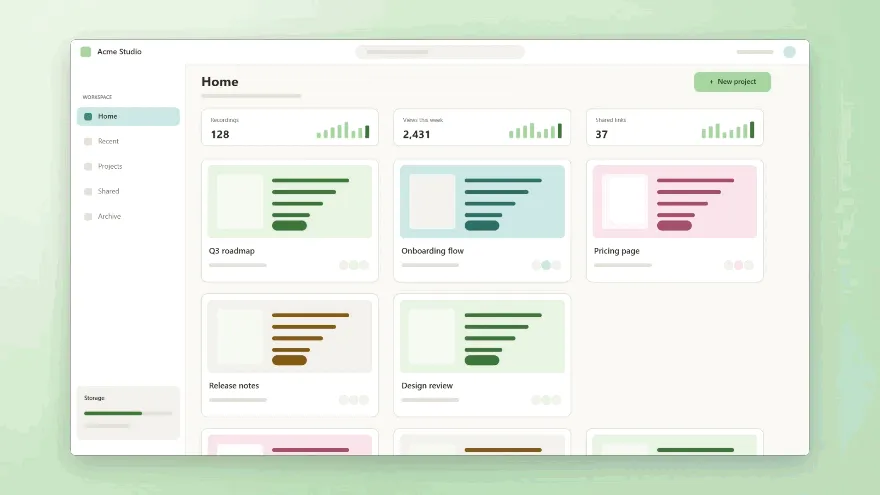
Close notifications, hide test data you don't want on screen and open the app on the screen you'll start from. Kamo records what's visible, so tidy up first.
- 2
Choose Window
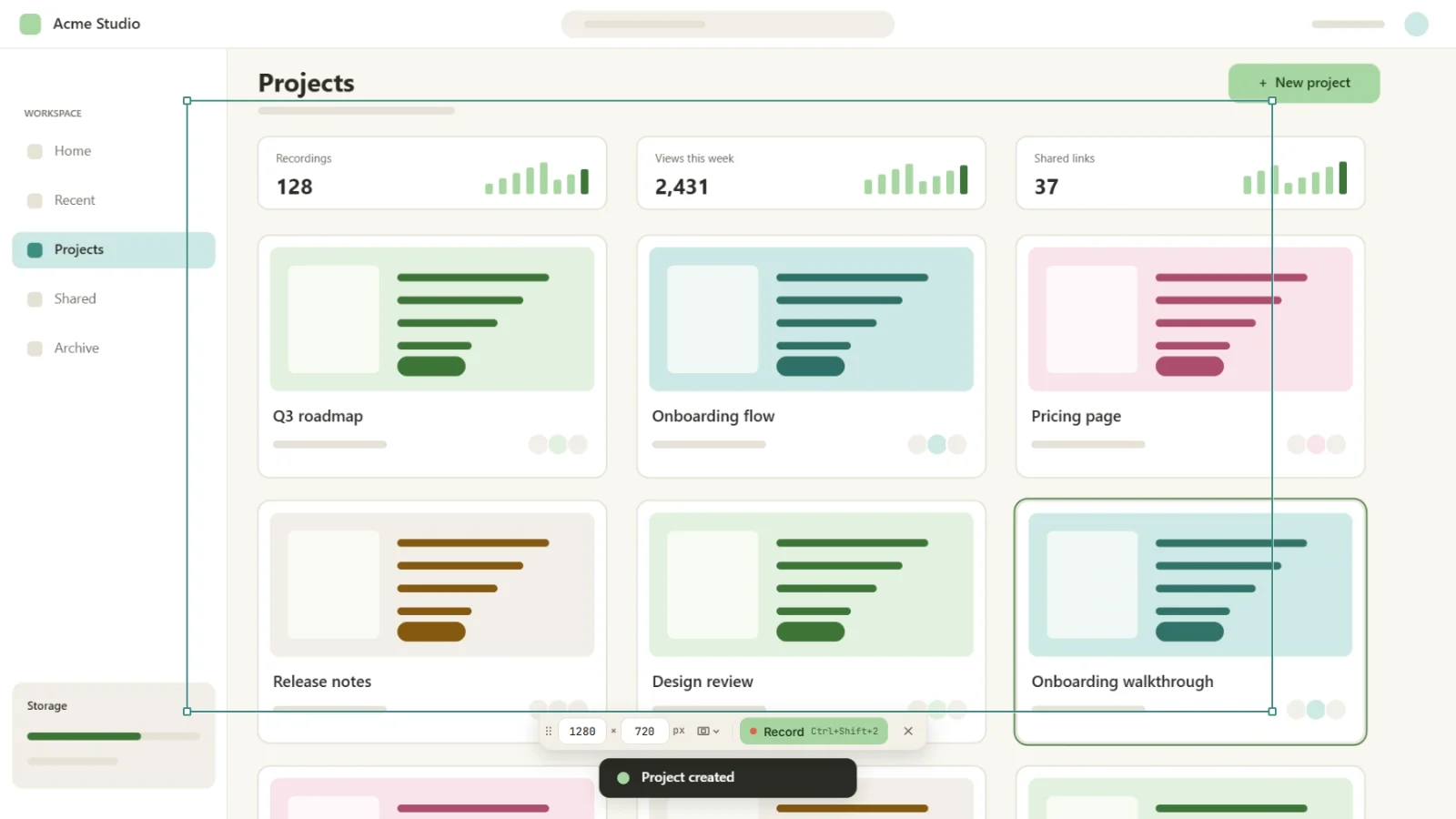
On Kamo's start screen, pick Window and choose your app from the list. One window gives sharper zooms than the whole screen, and clicks outside it don't zoom.
- 3
Turn on what you need
Microphone if you'll narrate, Computer sound if the app makes sounds. Each is one toggle, with a level meter so you can check before you start.
- 4
Record and click with intent
Hit Record, wait for the 3-2-1 and go. Click on purpose and pause a beat after each click: every click becomes a zoom. To stop from anywhere, press Ctrl+Shift+2.
- 5
Polish in the editor
When you stop, Kamo goes back to Home: open the recording from Recent projects. The zooms are already there. Drag or stretch the pink blocks on the timeline, double-click an empty spot to add one, and trim the start and the end. Pick a wallpaper, padding and corners on the side panel.
- 6
Export
Open Export, check Landscape (and Square if you'll post it), choose 1080p and export. Kamo saves to your Videos folder; Show in folder takes you straight there.
Tips
- Nearby clicks share one zoom, so you can fill a form without the camera jumping around.
- Zooms you edited by hand survive Regenerate zooms.
- Make the cursor bigger if people will watch on their phones.
Who this is for · See also

Try it on your next recording.
Free, open source, no account. Your first edited video is one download away.