
Guides
A vertical video with captions
Vertical tutorials live or die by two things: the viewer can see what you're clicking, and they can follow without sound. Kamo handles both.
4 min read
You'll need
- Kamo for Windows (free)
- The transcription pack (optional, about 150 MB)
Kamo-0.1.0-win-x64-setup.exe
Heads-up: the transcription pack is still being published. Until it's out, you can export without captions and add them later.
Step by step
- 1
Get the transcription pack
Captions come from a transcription that runs on your computer. In Settings → Optional packs, download Transcription — Light (about 150 MB) once.
- 2
Turn on camera and microphone
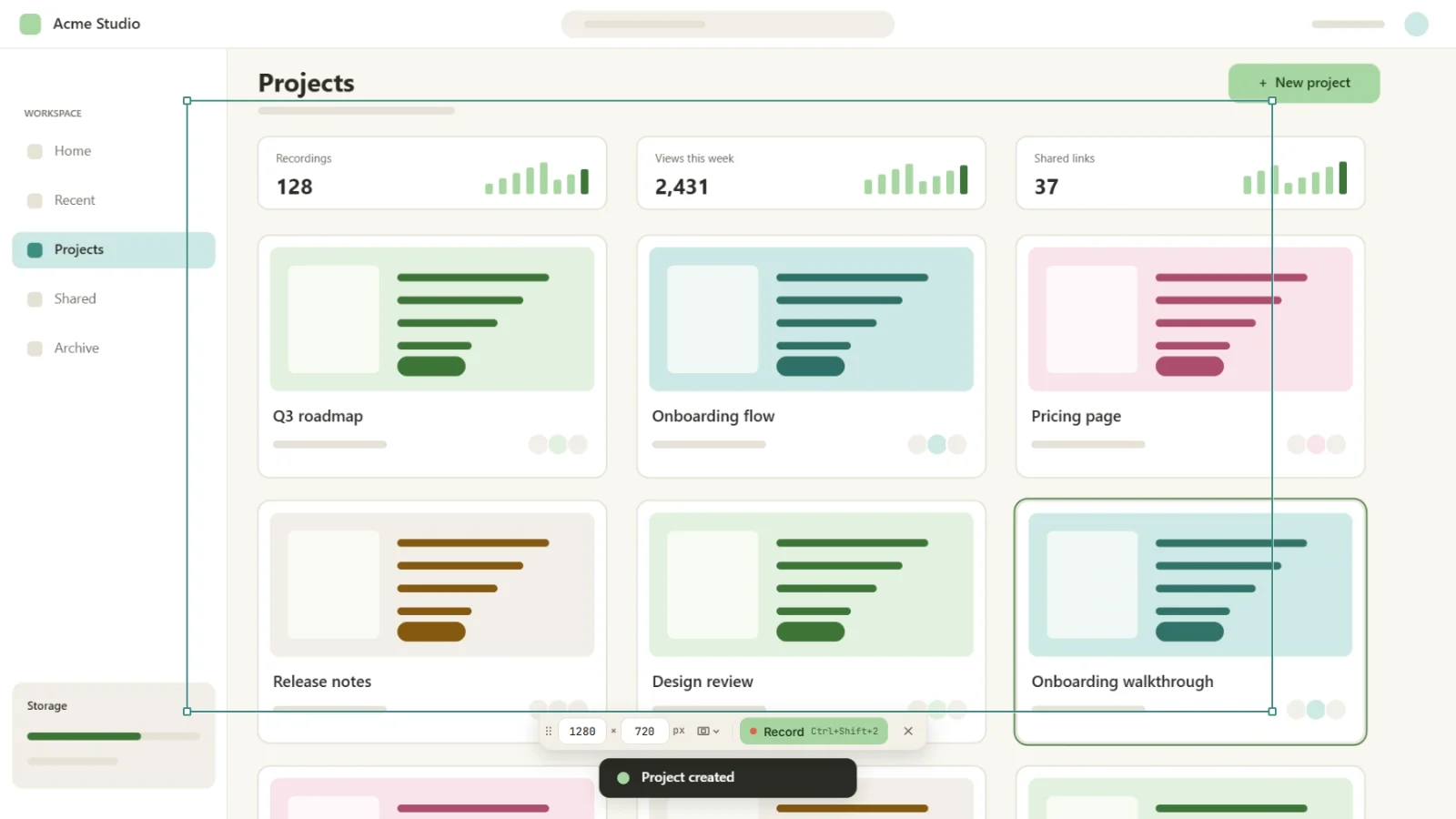
On the start screen, turn on Camera and Microphone, and check Record at 60 fps for smoother motion.
- 3
Record and talk
Explain while you click. Every click becomes a zoom, and in vertical the frame follows your clicks.
- 4
Transcribe and pick a style
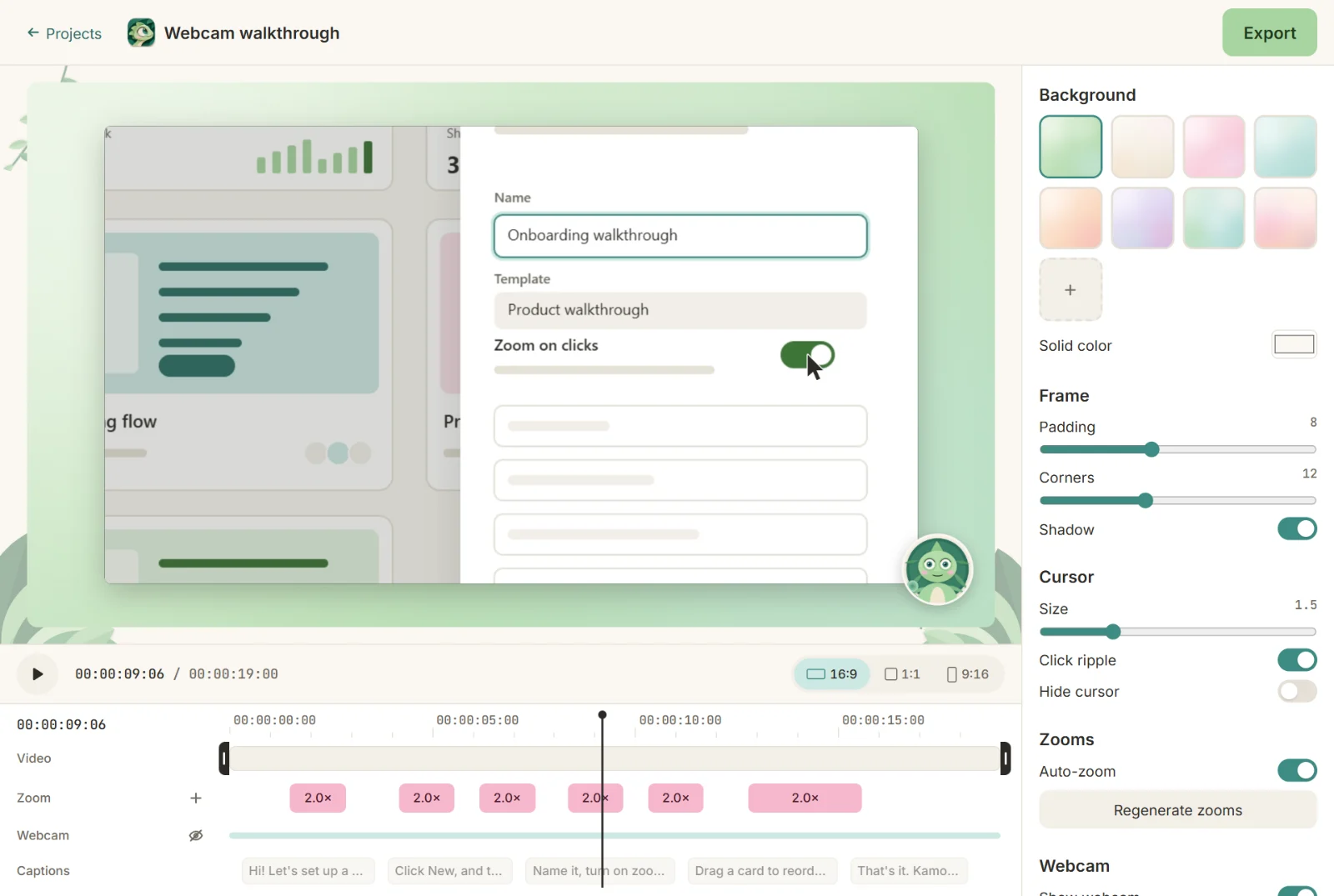
In the editor, open Captions and click Transcribe. Choose one of the 12 styles, at the bottom or in the middle, and fix any word right on the timeline.
- 5
Place your face
In the webcam settings, choose round or square, or let it become its own card under the screen in 9:16. The bubble shrinks during zooms.
- 6
Export 9:16 (and 16:9)
In Export, check Vertical, plus Landscape for YouTube. Burn the captions in for Reels and Shorts, or export an .srt for YouTube.

Tips
- For Portuguese, Chinese and Japanese, Transcription — Accurate (about 500 MB) gives better transcripts.
- One idea per video. Short and to the point wins.
- Look at the camera when you're not clicking.
Who this is for · See also
Try it on your next recording.
Free, open source, no account. Your first edited video is one download away.